IP Restrictions allow SendSafely Admins to limit where registered users can access SendSafely from, for example from an office network or VPN. When enabled, SendSafely validates the source IP on every authenticated request. If the IP is not in the approved list, the request is blocked and the user is directed to an IP restriction error page. For example, if a user’s IP changes mid-session (i.e., they disconnect from a VPN) that session is immediately denied.
IP restrictions are available to customers on the SendSafely Enterprise plan.
Overview
IP Restrictions are enforced across every access path to SendSafely:
- Logins
- Portal access (web sessions)
- Third-party integrations (Zendesk, Salesforce, Outlook etc.)
- REST API usage
- SCIM API access
IP restrictions only apply to registered users, guest users are unaffected.
Configuring IP Restrictions - Enterprise Console
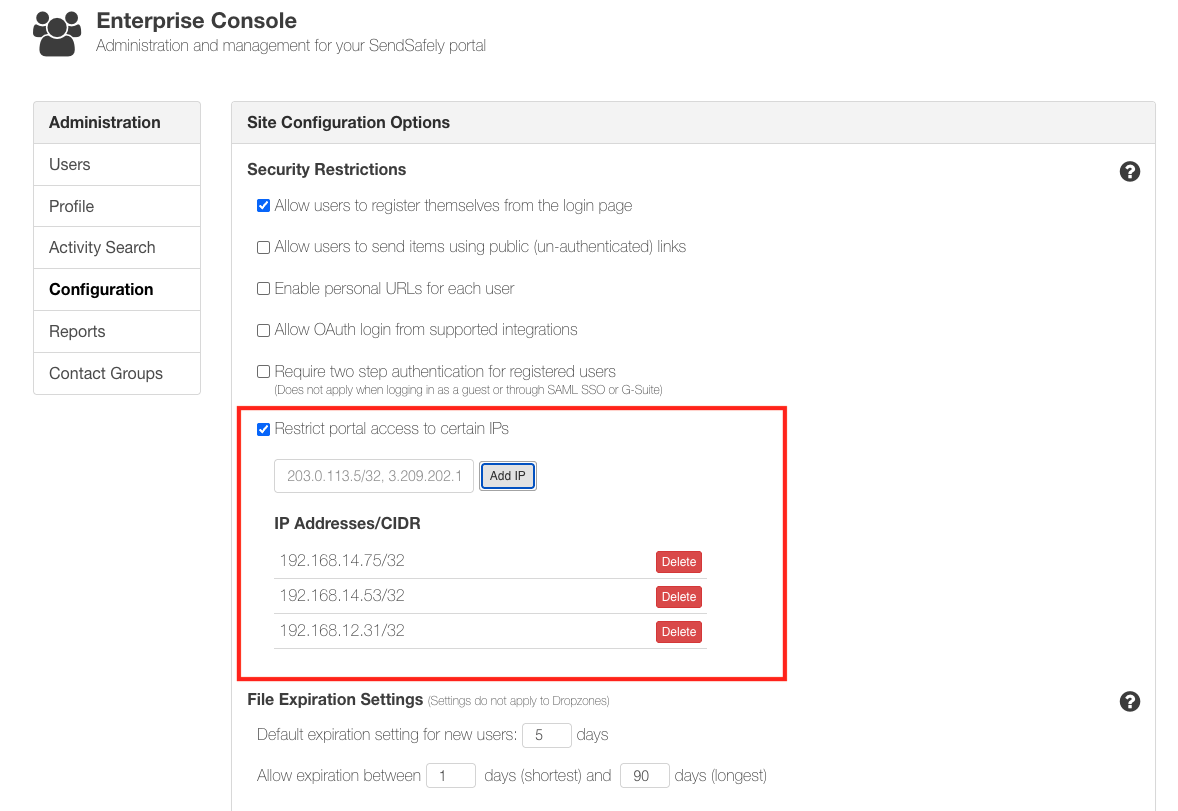
Admin users manage the Allowed IP range from the Enterprise Console, Configuration section. From here, admins can:
- Enable IP Restrictions by checking the box next to "Restrict portal access to certain IPs"
- Add one or more IP ranges using standard CIDR notation
- View, delete, and update existing IP ranges
To prevent accidental lock out, Admins must have at least one valid IP range configured and your current IP address must be included in the list before changes can be saved.
Configuring IP Restrictions - API
Enabling IP Restrictions, and configuring allowed IP ranges can also be configured by admins via the SendSafely REST API. More information on those endpoints can be found in our REST documentation here.
Using a Security Group to Exempt Certain Users
Certain privileged users, or service accounts may need to be whitelisted from org wide IP restrictions. These users can be managed via a Security Group. Members of the Security Group are not subject to the IP allowed range. Please contact support@sendsafely.com to configure and IP Restrictions security group.
Comments
0 comments
Article is closed for comments.