Portal Admins can specify the default, minimum and maximum package expiration for all users in their SendSafely portal. File expiration settings are managed in the Enterprise Console and apply to all packages sent using the web portal, API, and integrations. Additionally, Admins can enforce expiration settings for all Dropzones and Workspaces in their portal.
Expiration Settings are displayed under the Site Configuration Options section of the Enterprise Console. Values can be set between 1 and 365 days for Transfer and Dropzone packages. Workspace packages can have a maximum life of 1095 days (3 years).
File Expiration Settings
- New users added to the SendSafely portal will automatically inherit the default organization expiration setting. Users can change their default setting at any time in their own Edit Profile screen, however individual settings must fall between the shortest and longest days allowed.
- Adjusting the settings in the Enterprise Console does not change the default value on the Edit Profile screen for existing users, unless current individual settings are outside of the allowed organization range. If individual settings are outside of the allowed range, they will be automatically updated to the minimum, or maximum allowed (whichever value is closest).
- Any adjustment to settings are applied to new packages only. Existing packages retain the expiration value set when the package was created.
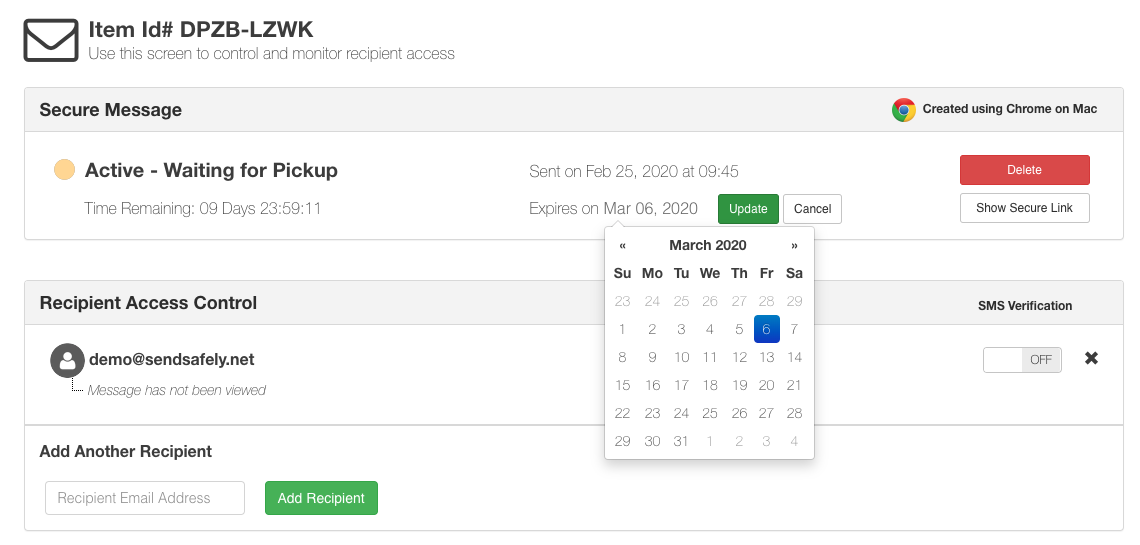
- Users can continue to update expiration on a package-by-package basis on both the Send Items Screen and Status page, however package expiration cannot be set outside of the allowed range.
Dropzone Settings
- New Dropzones will automatically inherit the default expiration setting specified in the Enterprise Console. Dropzone Owners can change the expiration at any time on their Dropzone Profile screen, however the new setting must fall between the shortest and longest days allowed.
- Adjusting the settings in the Enterprise Console does not change the expiration for existing Dropzones, unless current settings are outside of the allowed organization range. If a Dropzone expiration is outside of the allowed range, it will be automatically updated to the minimum, or maximum allowed (whichever value is closest).
- Any adjustments to settings are applied to new packages only. Existing packages retain the expiration value set when the package was created.
Workspace Settings
- Default – the expiration value, in days, applied to Workspaces when expiration is turned on for the first time. Admins can choose any default between 1 and 1095 days (3 years).
- Workspace Owners and Managers can change the expiration at any time on the individual Workspace settings modal, however the new setting must fall between the shortest and longest days allowed.
- Minimum – the shortest expiration period, in days, that a Workspace Owner is allowed to configure. Admins can choose a minimum as low as 1 day.
- Maximum – the longest expiration period, in days, that a Workspace Owner is allowed to configure. Admins can choose a max up to 1095 days (3 years).
- If a Workspace's expiration is outside of the allowed range, it will be automatically updated to the minimum, or maximum allowed (whichever value is closest).
- Enforced – a toggle that determines whether Workspace expiration is mandatory for every Workspace in the portal. If enforcement is enabled, Workspace Owners and Managers cannot turn expiration off.
Before enabling enforcement, it’s important to understand the potential impact. Existing Workspaces without expiration will inherit your default setting, and files that are already older than the newly applied expiration period will expire immediately.
Please closely read this Help Center Article before enforcing Workspace Expiration.
File Deletion
- Transfer and Dropzone Files are automatically deleted 5 days after expiration. Workspace Files are automatically deleted 30 days after expiration. Organizations that use their own Amazon S3 file storage have the option to disable file expiration and/or disable file deletion. For more information on using your own file storage, please see our help center article.
Comments
0 comments
Article is closed for comments.